
# Merge conflicts
When working with branches, you will inevitably run into merge conflicts. This page explains what they are, how to prevent them, and how to resolve them when they happen.
# Why do merge conflicts happen?
A merge conflict occurs when two branches modify the same lines in the same file. Git doesn't know which version to keep, so it asks you to decide.
Common scenario:
- You create a feature branch from
mainand change line 10 ofindex.html - Meanwhile, a teammate also changes line 10 of
index.htmlon a different branch - Your teammate's branch gets merged into
mainfirst - When you try to merge your branch → conflict!
# How to prevent conflicts
- Keep your feature branch up-to-date with
main(see Feature Branching > Step 4) - Communicate with your team about who is working on which files
- Make small, focused branches — the less code you change, the less chance of conflicts
- Don't work on the same files as your teammates when possible
# Recognizing conflicts
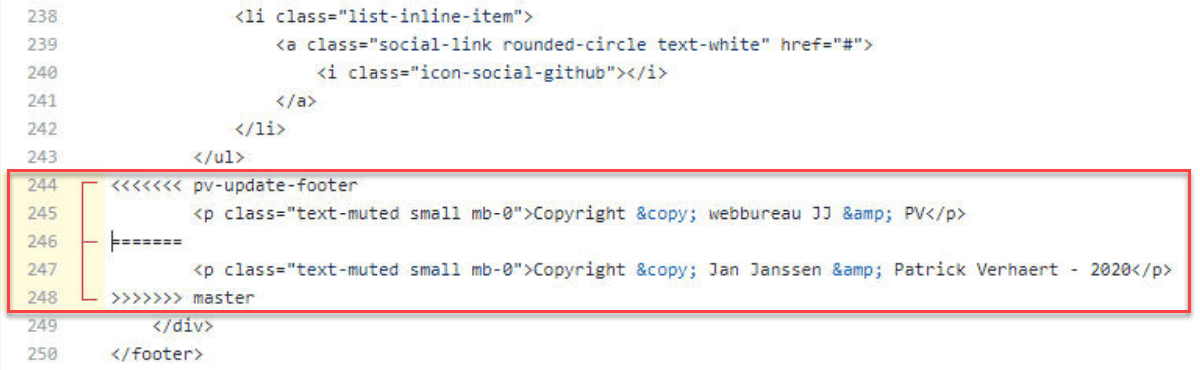
Conflicts are indicated by conflict markers in the affected files:
- The code between
<<<<<<<and=======is your version (from your feature branch) - The code between
=======and>>>>>>>is the other version (from the branch you're merging into, usuallymain)
# Resolving conflicts
To resolve a conflict:
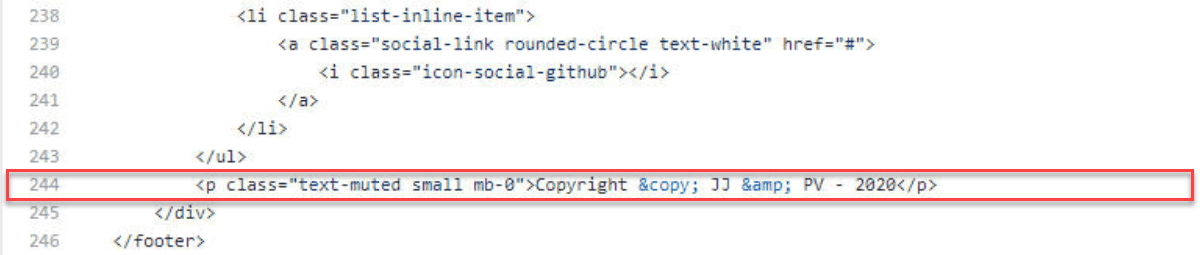
- Open the file containing the conflict
- Decide which version to keep (yours, theirs, or a combination of both)
- Remove the conflict markers (
<<<<<<<,=======,>>>>>>>) - Save the file
RESOLVING CONFLICTS IN YOUR IDE
Both PhpStorm and VS Code have built-in merge conflict tools that make resolving conflicts much easier:
VS Code: When you open a file with conflicts, VS Code highlights them and offers clickable buttons:
- Accept Current Change (your version)
- Accept Incoming Change (their version)
- Accept Both Changes
- Compare Changes (side-by-side view)
PhpStorm: Go to Git → Resolve Conflicts for a visual 3-way merge tool.
REMARKS
Most (simple) conflicts can be resolved online (on the GitHub site) using the conflict editor.
For more complex conflicts (multiple files, interrelated changes), it's best to resolve them locally using your IDE's merge tool, then commit and push the resolution.
# Resolving merge conflicts on GitHub
SEE ALSO
- Back to the Feature Branching workflow
- Quick reference? See the Cheat Sheet