
# Introduction
In Webdesign Essentials you learned the fundamentals of Git and GitHub. Here's a quick refresher of the key concepts before we dive into more advanced workflows.
# Setup
- We assume that your Git-related "setup", as explained in Webdesign Essentials > Tools > Git(Hub) (opens new window), is still in order
- you installed a recent version of the Git software for windows (opens new window)
- you have an educational account on GitHub (opens new window)
- you configured Git (user.name, user.email) correctly on all your devices
# Git Bash
Git Bash is a terminal application that provides (among others) a BASH emulation to run Git from the command line. The BASH emulation behaves just like the git command in LINUX and UNIX environments.
Git Bash is part of the Git for Windows (opens new window) package. We refer to Webdesign Essentials > Tools > Git(Hub) (opens new window) for installation instructions and more information. To check your version of Git for Windows, open a new Git Bash window and enter git --version.
$ git --version
git version 2.47.1.windows.1
2
TIP
If Git is already installed, you can update Git directly from within the terminal:
$ git update-git-for-windows
# Basic workflow
If version control is applied to a project, you have an online repo(sitory) on Github and a local repo(sitory) on your pc:
- You can start from a local project on your pc, make it a local repo and connect it to a new GitHub repo
- You start by cloning (
git clone) an existing GitHub repo (to which you're added/invited as a collaborator) to your pc (see e.g. your repo of Webdesign Essentials)
REMARK: private vs. public
- Private repositories are only accessible to the owner and the collaborators
- Unless you want to share your work with the rest of the world, we advise you to keep your repo's private!
- Public repositories are accessible to everyone on the internet
- Examples: Bootstrap (opens new window), css_bootstrap_demo_project (opens new window) of this course, etc.
So far, you used the basic/centralized Git workflow:
- After you have written some code, you transfer it to the online repo by using the sequence of commands:
git add->git commit->git push - You used
git pullto update your local repo to the latest published version on GitHub (e.g. when your teacher added content to the repo)
# .gitignore
- In the root of a project/repo
- Contains a list of files/folders that should not be tracked/included in the repository
Example: .gitignore of css_bootstrap_demo_project (opens new window)
.DS_Store
.idea
.vscode
node_modules
2
3
4
- Line 1: .DS_Store (a file in every macOS folder containing the user's view preferences) is added for macOS users
- Line 2: .idea is the folder containing the user's PhpStorm configuration of this project
- Line 3: .vscode is the folder containing the user's Visual Studio Code configuration of this project
- Line 4: the folder node_modules can be easily reconstructed by
npm install(ornpm ci) and should never be included in the repo
# README.md
- In the root of a project/repo
- Contains important information about your project
- What the project does
- Why the project is useful
- How the project can be used
- ...
- Appears on the GitHub "home page" of the repository
- Written in markdown (.md) format
Example: README.md of css_bootstrap_demo_project (opens new window)
# Bootstrap Custom Variables Demo

This project demonstrates the use of custom CSS variables with Bootstrap to create a
consistent design system. The project includes custom styles for alerts, buttons, and
callouts using predefined color schemes.

## Technologies Used

- HTML
- CSS
- Bootstrap 5.3.3

## Usage

...
2
3
4
5
6
7
8
9
10
11
12
13
14
15
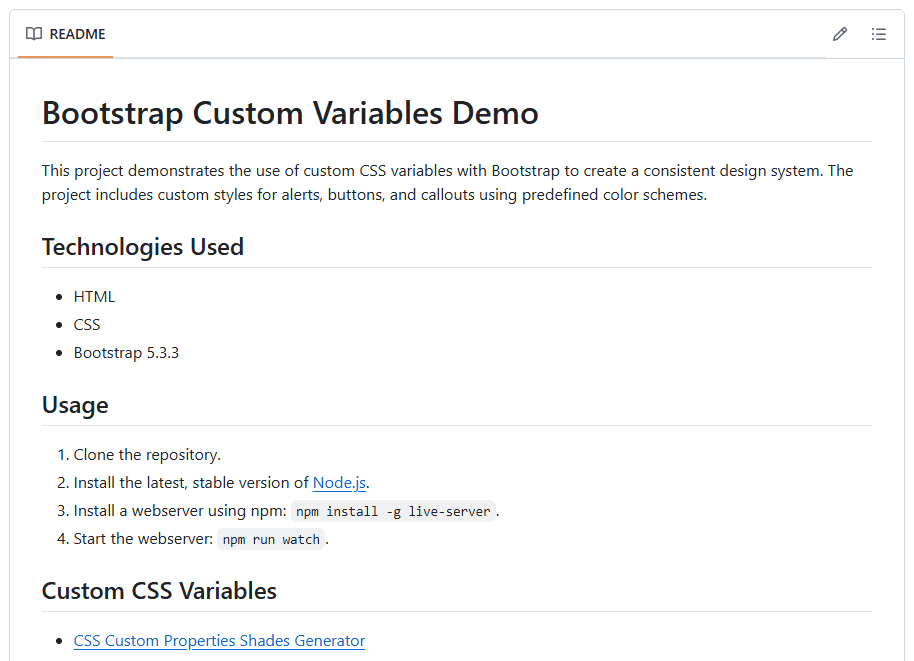
READING TIPS: markdown format
# .git folder
The .git folder contains all the information that is necessary for your project in version control
- Remote/GitHub repository address
- Commits
- Commit history
- Branches
- ...
Do NOT remove this folder!
# What is a branch?
So far, all your work has been on a single timeline: every commit comes after the previous one, in one straight line. This single timeline is called the main branch — the default branch that every Git repository starts with.
A branch is essentially a parallel version of your project. Think of it like making a copy of your project folder to try something out — except Git does it much more efficiently, and makes it easy to merge your changes back later.
main:       A --- B --- C
                         \
your branch:              D --- E
2
3
In this example:
- Commits A, B, and C are on
main - You created a new branch from commit C
- Commits D and E are on your branch — they don't affect
mainat all - When you're done, you can merge your branch back into
main
# Why use branches?
- Isolation: Your work doesn't interfere with the main/working version of the project
- Experimentation: You can try things out and simply delete the branch if it doesn't work
- Collaboration: Multiple team members can work on different branches at the same time without getting in each other's way
# Viewing your branches
You can see which branches exist and which one you're currently on:
# List all local branches (current branch is marked with *)
$ git branch
* main
  jj-add-contact-form
  jj-fix-navbar
2
3
4
5
NEXT UP
Now that you understand what branches are, learn how to use them in practice in Feature Branching.